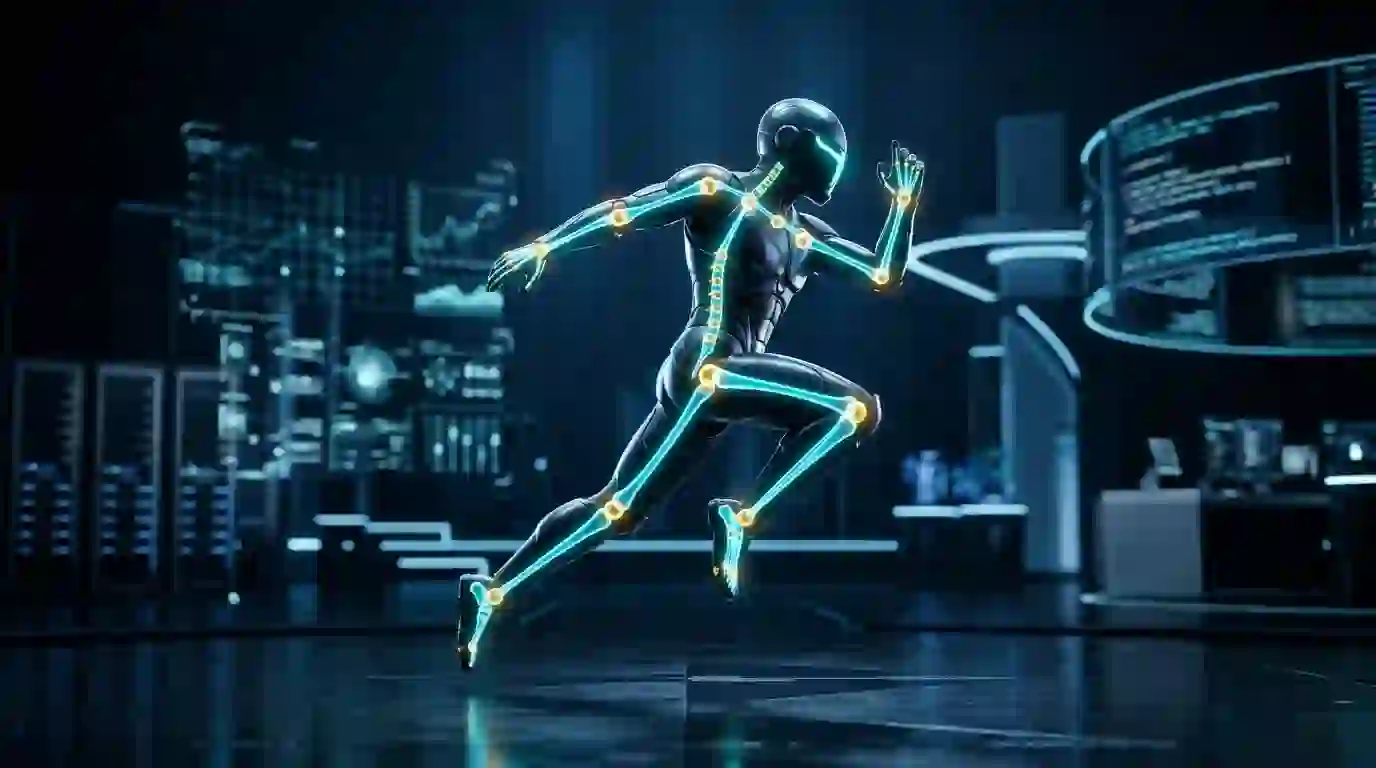
Manual 3D character rigging drains hours of creative energy, demanding endless bone placement, weight painting, and tedious trial-and-error tests. Staring at twisted polygon meshes and broken armatures delays production schedules, frustrates solo game developers, and stalls indie film projects before they ever launch. Mixamo solves this roadblock instantly through browser-based automated rigging and an extensive motion capture library that prepares any humanoid model for immediate production in seconds.
What Is Cloud-Based Auto-Rigging and Character Animation?
Traditional character rigging requires an artist to construct complex digital skeletons, establish forward and inverse kinematics, and paint skin weights manually. This technical discipline frequently demands days of specialized labor for a single character mesh. Cloud-based animation technology automates these computational burdens through machine learning algorithms and procedural bone orientation models.
The platform originated at Stanford University under the leadership of Stefano Corazza and entered the Adobe software family in 2015. Adobe integrated the service into Creative Cloud, providing 3D artists, game creators, and visual effects designers with immediate skeletal generation. The browser-based interface eliminates heavy local hardware dependencies during the rigging phase.
Creators upload a clean humanoid polygonal model directly into the web application. Automated algorithms examine the geometric proportions, match joint locations against an expansive motion library, and bind the mesh to a standard skeletal structure. The entire pipeline operates in under two minutes, unlocking rapid asset prototyping for interactive applications.
Clearing Brand Name Confusion: Addressing Maximo and Mixoko Search Queries
Search algorithms frequently record misspelled user queries for digital character animation software. Many beginners accidentally type maximo into search bars, conflating Adobe’s 3D character tool with IBM Maximo, an enterprise asset management platform used in corporate facility maintenance. Other creators enter phonetic variations like mixoko into search engines when attempting to recall the animation library.
These typographical errors produce confusion among artists seeking fast character rigging tools. The correct name is Mixamo, which remains fully accessible under Adobe Creative Cloud infrastructure. Knowing the proper nomenclature ensures developers find authentic tutorials, official user communities, and compatible asset pipelines.
Independent creators should verify platform URLs and official Adobe branding before providing creative credentials. Legitimate community plugins, such as Blender retargeting scripts, always reference the official platform name. Recognizing search discrepancies preserves valuable development time and directs creators to genuine technical documentation.
Core Technical Requirements: Topology, Stances, and Supported File Formats
Clean input geometry forms the baseline foundation for accurate automated skinning. The web rigger accepts FBX, OBJ, and DAE file formats with embedded materials or accompanying textures compressed into a ZIP folder. High-poly models above one hundred thousand polygons often fail during server uploads, making optimized game-ready geometry between fifteen thousand and fifty thousand triangles the ideal target.
Mesh geometry must maintain clean topology with evenly distributed quad polygons or optimized triangular faces. Non-manifold geometry, duplicate coplanar faces, and unmerged vertices cause the automated weighting solver to generate severe surface distortions. Artists must weld overlapping seams and inspect normals before attempting any skeletal generation.
Character posture dictates the orientation accuracy of procedural bone chains. Positioning the mesh correctly ensures that automated joints seat naturally within the limbs:
- Standard T-pose: The character stands erect with arms extended horizontally parallel to the ground, palms facing downward.
- Relaxed A-pose: The character keeps arms angled downward at roughly forty-five degrees, offering better natural shoulder deformations.
- Forward head alignment: The character looks directly along the positive Z-axis with eyes centered and chin level.
- Straight leg positioning: Knees maintain a subtle outward bend to establish the natural directional bend plane for inverse kinematics.
Symmetrical character design ensures balanced weight generation across both halves of the armature. Asymmetrical props, heavy shoulder armor, and dynamic clothing often confuse the auto-weighting solver. You should separate loose accessories from the base character mesh before triggering the automated rigging sequence.
Pre-Flight Character Modeling Checklist Before Upload
Preparing your 3D digital model properly prevents rigging failures and eliminates repetitive upload cycles. Artists save hours of debugging by executing a rigorous inspection checklist inside their primary 3D modeling package. Clean geometry guarantees that skeletal joints bind precisely to the intended vertex groups.
Follow these critical pre-flight modeling checkpoints before initiating your upload. Verifying your mesh against each standard prevents common rigging errors and saves valuable production time:
- Apply all scale and rotation transforms to freeze character dimensions at a uniform 1.0 scale factor.
- Position the character pivot point directly at the ground center between the feet.
- Ensure the character faces forward toward positive Z or positive Y according to your target game engine coordinate system.
- Inspect the mesh surface for inverted normals and recalculate normal vectors outward.
- Delete unattached floating vertices, interior faces, and hidden geometry inside the torso or head.
- Open closed mouth cavities slightly if you intend to add facial blendshapes after rigging.
- Separate rigid mechanical accessories like swords, guns, or shields into independent object files.
Watertight meshes yield the most predictable results during automatic skin binding. Thin, single-sided polygon sheets on capes or skirts frequently pull across body limbs during animation. Extruding clothing geometry into closed two-sided volumes prevents painful mesh tearing during dynamic movements.
The Step-by-Step Auto-Rigging Marker Placement Process
The automated rigging tool relies on interactive visual targets to identify key anatomical landmarks on your imported character model. Once you upload an FBX or OBJ file, the system opens a three-dimensional inspection viewport. You must align the character toward the camera before dragging the placement rings onto specific body zones.
Execute the landmark alignment sequence with deliberate precision. Carefully matching the colored circles with anatomical pivot points produces optimal joint skinning:
- Place the Chin marker directly at the lowest center point of the jawline.
- Drop the Wrist markers on the narrowest point of the forearm where the hand articulates.
- Align the Elbow markers with the outer bend point of each arm.
- Position the Knee markers directly over the center of the patella on each leg.
- Center the Groin marker at the lowest point of the pelvis between the upper thighs.
The system features a symmetry toggle switch that mirrors marker movements across the central axis. Disable this symmetry lock whenever rigging asymmetrical characters or fantasy monsters with irregular proportions. Precision placement at this stage directly determines how cleanly elbows, knees, and hips deform during movement.
Next, select your desired skeletal complexity level from the skeleton level of detail drop-down menu. Choose the standard sixty-five bone skeleton for full five-finger hand articulation and complex manual posing. Select reduced three-finger or two-finger presets when building low-poly background non-player characters for mobile games.
Click the Next button to initiate the server-side algorithmic binding process. The computational engine calculates bone positions, generates capsule skinning volumes, and runs smooth weight distribution passes. Within sixty seconds, the platform displays an interactive preview of your character walking, confirming that your placement markers succeeded.
Exploring the Motion Capture Animation Library and Real-Time Sliders
The motion capture database contains thousands of production-grade animation sequences spanning diverse creative genres. Creators browse through categorized collections including combat maneuvers, agile athletic locomotion, dance routines, and subtle cinematic conversational gestures. Each clip records authentic actor performances captured using high-end optical tracking cameras.
Interactive parameter sliders allow instant customization of every animation performance before downloading. Fine-tuning these values directly in the browser ensures that motion fits your character proportions perfectly:
- Overdrive: Modifies the playback cadence, enabling you to speed up sprints or slow down heavy strolls.
- Character Arm-Space: Adjusts horizontal distance between arms and torso to prevent hands clipping through thick armor.
- Trim: Sets custom in-points and out-points to isolate specific motion phases or strip unwanted setup frames.
- Mirror: Reverses lateral movements, instantly flipping right-handed sword strikes into left-handed attacks.
- In-Place: Locks root translation to the spot, preventing character displacement across the global scene coordinate space.
The In-Place toggle serves as an indispensable feature for modern game engine development. Game engines like Unreal Engine and Unity rely on programmatic character controllers to drive world coordinates, requiring animations to play without embedded world translation. Activating In-Place keeps feet planted squarely while maintaining realistic internal momentum and footfalls.
Indie developers can chain several thematic clips together to assemble coherent character movesets. Combining idle loops, transitional walking cycles, running sprints, and combat impacts forms an interactive movement state machine. Inspecting animations against multiple camera angles inside the browser viewport guarantees reliable performance before you export.
Export Settings Demystified: FBX Formats, Frame Rates, and Skin Data
Exporting assets correctly ensures that downloaded data integrates cleanly with your target development environment. The download interface offers multiple file configurations tailored for animation software and real-time game engines. Understanding each configuration setting prevents unnecessary file bloat and asset re-imports.
The primary export settings provide flexible control over your 3D asset pipeline. Selecting the appropriate parameters guarantees compatibility across modern game engines and digital content creation tools:
- Format: Select FBX Binary for modern DCC tools, FBX for Unity for Unity Mechanim setups, or Collada DAE for legacy software.
- Skin: Choose With Skin to download the character polygon mesh bound to the skeleton, or Without Skin for motion clips.
- Frames Per Second: Select 30 FPS for standard digital media, 60 FPS for responsive gaming, or 24 FPS for cinematic projects.
- Keyframe Reduction: Select None to preserve nuanced actor details, or Uniform to trim redundant keyframes on flat curves.
A disciplined asset management strategy separates character geometry from animation clips. Export your rigged character once using the With Skin option to serve as your master skeletal mesh. Afterward, download all required animation cycles using the Without Skin option to keep individual animation files tiny and lightweight.
This separation prevents memory bloat in large game projects. Instead of duplicating hundreds of megabytes of identical mesh geometry across dozens of movement clips, your project loads one master mesh and attaches lightweight animation data dynamically. Game engines parse these lean animation clips instantly during runtime loading routines.
Blender Integration Pipeline: Armature Importing, Shading, and Retargeting
Blender provides an exceptional open-source environment for refining and expanding automated character animations. Importing an FBX file into Blender involves clicking File, selecting Import, and choosing FBX. Blender immediately recreates the bone hierarchy, binds the vertex weight groups, and instantiates the character material nodes.
Imported materials often display unexpected transparency defects in the 3D Viewport. This transparency bug happens because Blender sets the material blend mode to Alpha Blend by default for imported FBX textures. Open the Material Properties tab, locate the Settings subpanel, and switch Blend Mode to Opaque or Alpha Clip to restore proper surface rendering.
Blender users manage multiple animation clips through the Non-Linear Animation editor. This specialized timeline view allows creators to blend and sequence isolated character performances cleanly:
- Open the Dope Sheet editor and switch the editing mode to the Action Editor context.
- Name each incoming animation clearly, such as Player_Walk, Player_Run, or Player_Jump.
- Click the Push Down button to convert active actions into non-linear animation tracks.
- Stack multiple animation strips across parallel tracks to blend upper-body attacks with lower-body walking cycles.
Artists seeking to modify existing animation keyframes can use the open-source auto-rigger converter add-on for Blender. This community add-on generates intuitive inverse kinematic control widgets over the raw imported bone structure. You gain fluid foot targets, knee poles, and hand controllers without stripping away the original motion capture data.
Unreal Engine 5 Pipeline: IK Rig Setup and Mannequin Retargeting
Unreal Engine 5 features an advanced animation retargeting system capable of transferring imported motion clips onto standard game mannequins. Start by dragging your master skeletal mesh FBX file into the Content Browser. Ensure the Import Skeletal Mesh checkbox remains ticked, select None for the Skeleton field, and click Import All.
Unreal Engine generates a dedicated Skeleton asset, a Skeletal Mesh asset, and individual Physical Asset capsules. Next, right-click in your project folder, navigate to Animation, and create an IK Rig asset based on the newly imported skeleton. Open the IK Rig editor to define your retarget chains for the spine, head, arms, legs, and individual fingers.
Execute the retargeting workflow through these specific technical phases. Organizing your bone chains methodically guarantees natural joint motion across different skeletal proportions:
- Set the pelvis or hips bone as the Retarget Root inside your IK Rig asset.
- Define limb chains by selecting start bones and end bones for left arm, right arm, left leg, and right leg.
- Create a corresponding IK Rig for the default Unreal Engine Mannequin character (Manny or Quinn).
- Create an IK Retargeter asset, designating your imported skeleton as the Source and the UE5 Mannequin as the Target.
- Adjust the base pose in the retarget editor until both character armatures match identical T-pose alignments.
Once poses align, browse through the asset browser inside the IK Retargeter window. Click the Export Selected Animations button to bake your motion capture library directly onto the Unreal Engine 5 Mannequin skeleton. The engine generates pristine animation sequences ready for immediate insertion into your Character Blueprint state machine.
Unity Game Engine Pipeline: Humanoid Avatar Mapping and Blend Trees
Unity excels at handling character animations through its proprietary Mecanim animation architecture. Import your character FBX file into the Unity project Assets folder. Select the model file in the Project window and navigate to the Rig tab in the Inspector window.
Set the Animation Type property to Humanoid and click Apply to generate an Avatar definition. Unity parses the bone hierarchy and attempts to match each joint to standard humanoid anatomical definitions. Click the Configure button to review the bone mapping matrix inside the dedicated avatar configuration view.
Follow these configuration steps for dependable Unity character mechanics. Validating each joint mapping prevents limb flipping and distorted rotations during runtime gameplay:
- Verify that all major bone indicators glow solid green, confirming accurate anatomical assignments.
- Check the Pose menu at the bottom of the Inspector and select Enforce T-Pose if limbs appear bent.
- Ensure head, jaw, and individual finger bones map to their respective optional transformation slots.
- Click Done to save the Avatar asset for runtime gameplay controllers.
Next, create an Animator Controller asset and open the Animator window. Drag your imported movement clips into the canvas area to create distinct animation states. Set up directional Blend Trees for smooth eight-way movement blending between forward walks, lateral strafes, and backward steps based on horizontal and vertical input parameters.
Enable the Apply Root Motion checkbox on your character’s Animator component if your animation clips contain world translation. For player characters controlled through custom physics or character controller scripts, disable root motion to allow custom C# code to manage velocity and collisions. Mecanim provides exceptional stability across diverse gaming platforms.
Advanced Troubleshooting: Solving Common Mesh Glitches and Joint Twisting
Even experienced 3D technical artists encounter unexpected mesh glitches when generating automated character armatures. Knowing how to diagnose geometry conflicts and skinning deformities saves hours of frustration. Systematic troubleshooting transforms flawed character imports into production-ready assets.
Examine the following common technical issues and their proven corrections. Understanding the root cause of mesh deformation allows you to resolve errors rapidly:
- Inverted Surface Normals: Polygons appear black or completely invisible inside the online 3D viewer. Correct this error in your modeling software by selecting all faces and executing an outward normal recalculation.
- Candy Wrapper Joint Twisting: Wrists or ankles collapse inward into a thin pinched point during rotations. This issue occurs when bone markers sit too close to joint borders; re-upload the mesh and reposition wrist markers closer toward the palm base.
- Mesh Tearing at Seams: Vertices along clothing borders or UV seams split open during walking cycles. Fix this defect by executing a merge vertices by distance command across the entire character mesh before uploading.
- Sticky Limbs: Fingers or inner thighs glue together during movement cycles. This deformity happens when resting geometry touches adjacent surfaces; adjust your base model to widen the gap between legs and spread fingers evenly.
Complex character designs with loose cloth layers, bandoliers, or heavy backpacks often distort under automated linear skinning. You can detach these accessory meshes before rigging, auto-rig the naked character body, and parent the accessories to bone sockets inside your game engine. This modular architecture prevents dynamic cloth from deforming like organic rubber during athletic actions.
Weight painting touch-ups inside Blender or Maya provide the final layer of professional polish. Smooth out weight gradients across the shoulder deltoids, clavicles, and groin area using brush smoothing operations. Investing ten minutes in manual weight cleanup elevates an automated armature into a bespoke studio-grade asset.
Auto-Rigging Platforms vs Manual Skeletal Workflows: A Comprehensive Comparison
Choosing the right character preparation pathway depends on project scope, delivery schedules, and technical animation demands. Automated cloud tools provide lightning-fast rigging speeds, making them ideal for rapid prototyping, background characters, and indie game titles. Conversely, manual rigging pipelines deliver unmatched precision for cinematic close-ups, bespoke mechanical rigs, and expressive facial performances.
The following comparative table contrasts leading character rigging methodologies across primary technical parameters. Evaluating each platform against your project requirements ensures the most efficient allocation of creative resources:
| Rigging Solution | Average Setup Time | Facial Rigging Support | Finger Articulation | Skill Requirement | Best Production Use Case |
|---|---|---|---|---|---|
| Cloud Auto-Rigger | Under 2 minutes | None (Requires external morphs) | Full 5-Finger or simplified | Beginner friendly | Fast prototyping, indie game NPCs |
| Reallusion AccuRIG | 3 to 5 minutes | Basic jaw and eye bones | Full 5-Finger custom joints | Intermediate | Game characters, iClone cinematics |
| Blender Auto-Rig Pro | 10 to 15 minutes | Advanced bone and shapekeys | Modular custom hand bones | Intermediate to Advanced | Stylized games, feature film animation |
| Bespoke Manual Rigging | 8 to 24 hours | Comprehensive blendshapes & GUI | Fully customized anatomical rigs | Advanced Technical Director | Hero characters, blockbuster VFX |
Automated rigging excels when speed and volume outshine bespoke custom deformations. Small development teams can populate an entire virtual world with dozens of animated non-player characters in a single afternoon. When high-fidelity hero characters require stretch-and-squash cartoon physics or complex facial lip-syncing, transitioning to dedicated control rigs becomes essential.
Frequently Asked Questions About 3D Character Auto-Rigging
Can you use Mixamo animations for commercial game projects?
Yes, Mixamo permits royalty-free commercial usage for video games, interactive software, and commercial film productions under the standard Adobe Creative Cloud license.
Does Mixamo support non-humanoid creatures or quadrupeds?
No, Mixamo requires a bipedal humanoid skeletal morphology and cannot automatically rig four-legged animals, flying creatures, or multi-limbed monsters.
Why does Mixamo fail during character mesh upload?
Mixamo fails during upload when models exceed polygon thresholds, contain corrupted non-manifold geometry, or carry unapplied scale transforms and non-standard material nodes.
Can you edit Mixamo keyframes inside 3D software?
Yes, you can edit Mixamo keyframes easily by importing the FBX animation files into Blender, Maya, or 3ds Max to adjust curves, layer actions, or alter posing.
Does Mixamo include facial expression rigging?
No, Mixamo focuses exclusively on body skeletal kinematics and does not generate facial blendshapes, jaw articulation bones, or eyelid control systems.
How do you fix root motion sliding in Mixamo animations?
You fix root motion sliding by selecting the In-Place checkbox inside Mixamo before exporting your clip, allowing your game engine character controller to handle world translation cleanly.
Take Control of Your 3D Character Animation Workflow Today
Automated character rigging transforms how digital artists and indie studios approach 3D animation. Eliminating tedious skeletal setup and manual weight painting frees creators to focus on captivating storytelling, responsive game mechanics, and expressive visual design. The extensive motion capture library empowers developers to test gameplay mechanics rapidly without investing thousands of dollars in optical tracking suits.
Start preparing your humanoid character meshes today by applying clean modeling standards and verifying uniform scale transforms. Upload your favorite character to experience the speed of cloud-based skeletal generation firsthand. Combine automated body armatures with your custom game engine controller to bring your digital virtual worlds to life immediately.